It's Sunday evening. You have a client call Monday morning, and you're still copy-pasting sessions data from GA4 into a spreadsheet. The Google Ads tab is open on the right. The GSC export is half-done in another window. You've been at this for 40 minutes. For one client.
This is the most common productivity drain in agency life, and it's almost entirely avoidable.
If you're running 10 clients and spending 30 minutes per client per week on manual reporting, that's 5 hours a week gone, 260 hours a year.At a $100/hr agency billing rate, you're looking at $26,000 in recovered capacity sitting on the table. The actual number is often higher when you account for the hidden costs beyond time.
This guide will walk you through exactly how to automate client reporting: connecting data sources, branding your reports, scheduling delivery, and letting the system run itself. No spreadsheets. No manual exports. No Sunday evening panic.
Why Manual Reporting Is Killing Your Agency's Productivity
Most agencies know reporting takes too long. Fewer have stopped to calculate exactly what it costs them.
Manual client reporting has four hidden costs:
- Time. Pulling, formatting, and sending reports for 10+ clients adds up to days of work per month, time that could go toward strategy, pitches, or serving clients better.
- Human error. Copy-paste mistakes, mismatched date ranges, and stale screenshots quietly erode the trust clients place in your numbers.
- Delayed delivery. When reports are manually built, they tend to go out late — or inconsistently. Clients notice.
- Inconsistent formatting. Every report built by hand looks slightly different. Over time, that signals a lack of process, not professionalism.
The fix isn't hiring faster or working longer hours. It's eliminating the manual steps entirely. The data your clients need already exists in GA4, Google Search Console, and Google Ads — it just needs a system to pull it, format it, and deliver it automatically.
What “Automated Client Reporting” Actually Means
Automation in client reporting isn't magic. It's a clearly defined pipeline that runs without you touching it. Here's what it looks like in practice:
- Data is pulled automatically. Your reporting tool connects to GA4, Google Search Console, and Google Ads via OAuth. No CSV exports, no API keys, no manual work.
- Reports are always current. Data refreshes daily. When a client opens their report, they see numbers updated within the last 24 hours.
- Delivery runs on a schedule. Weekly or monthly emails go out automatically on the day you choose, to the addresses you configure — no action required.
- Everything is branded to your agency. Your logo, your colors, your name — on every report, for every client.
Contrast this with the old way: logging into each platform, downloading CSVs or screenshots, dropping them into a Slides or Notion template, adjusting formatting, manually emailing it, and repeating next month. The new way is a one-time setup per client. After that, it runs itself.
Step-by-Step: How to Set Up Automated Client Reporting
The following steps use ReportLayer — a white-label reporting platform built specifically for agencies, with a free plan that covers up to 3 clients.
Step 1: Connect Your Client's Google Accounts (One-Time Setup)
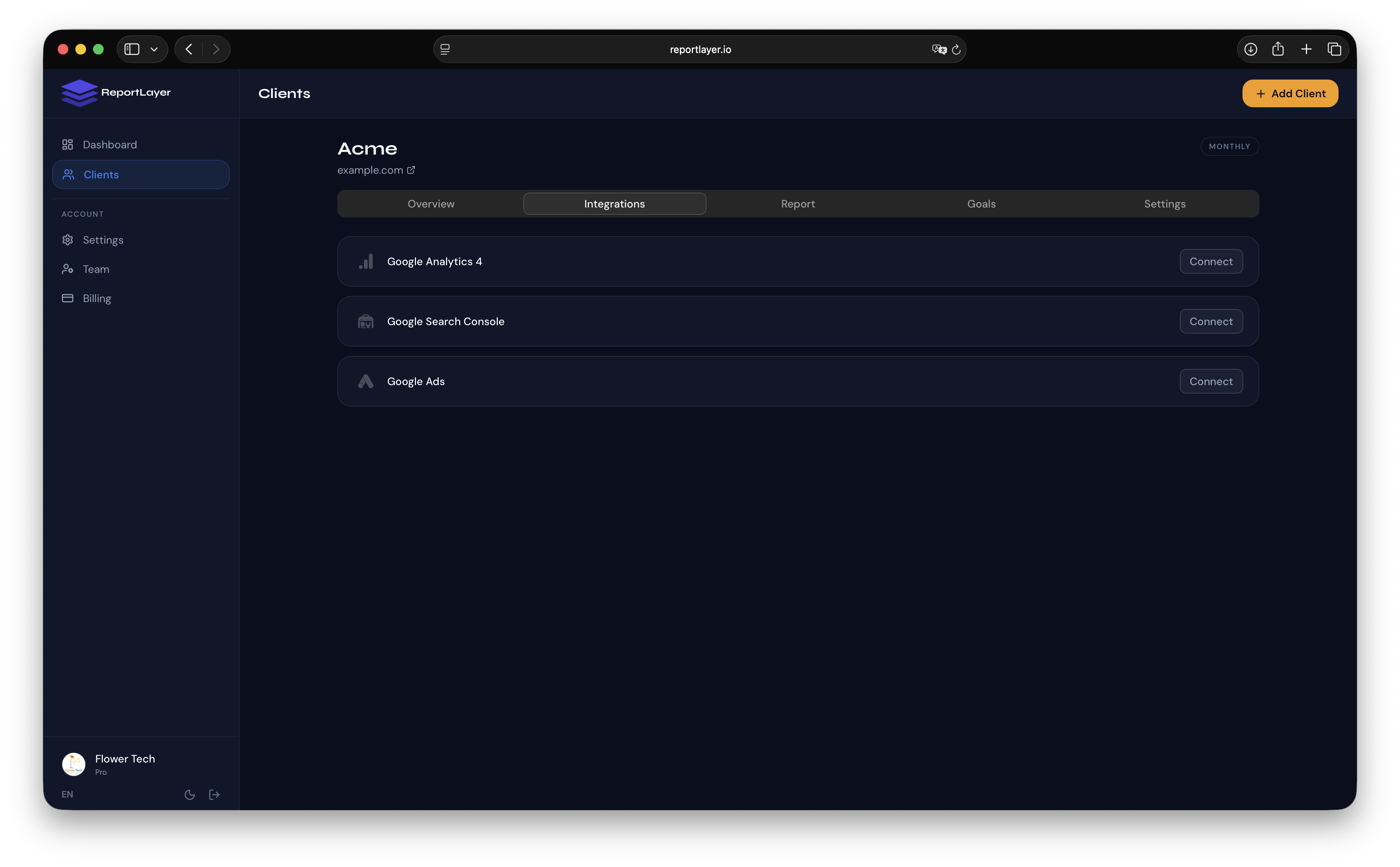
Go to your client's profile and click Connect Integration. You'll see three options: Google Analytics 4, Google Search Console, and Google Ads.
Each connection uses OAuth— you click, your client authorizes access, and you're done. No API keys. No developer configuration. No credentials to manage manually. This takes under 5 minutes per client, and it only happens once. From that point forward, data is pulled automatically.
Step 2: Brand the Report and Configure KPIs
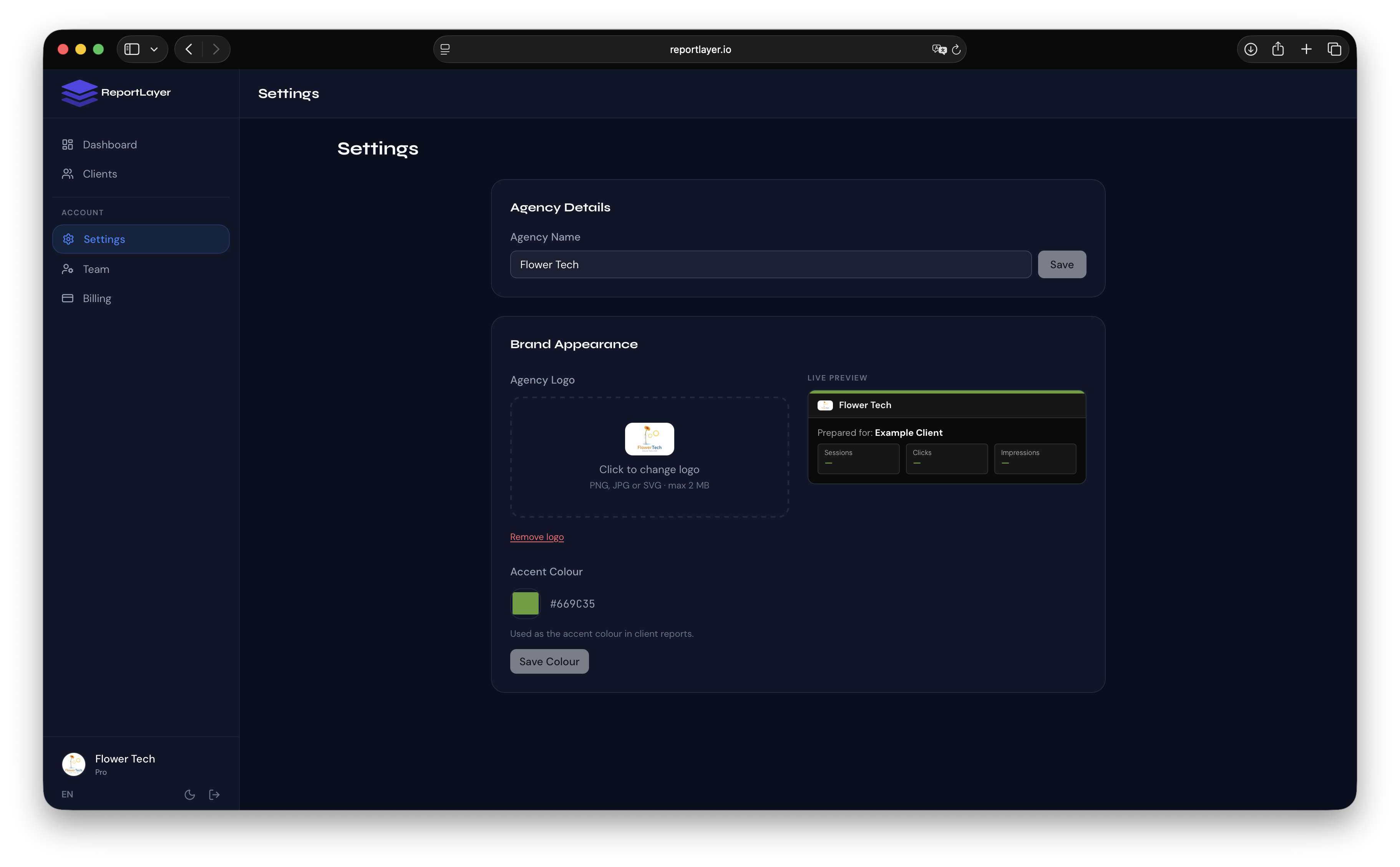
Go to Settings and upload your agency logo and choose an accent color. Every report you generate, for every client, inherits these automatically. You set it once.
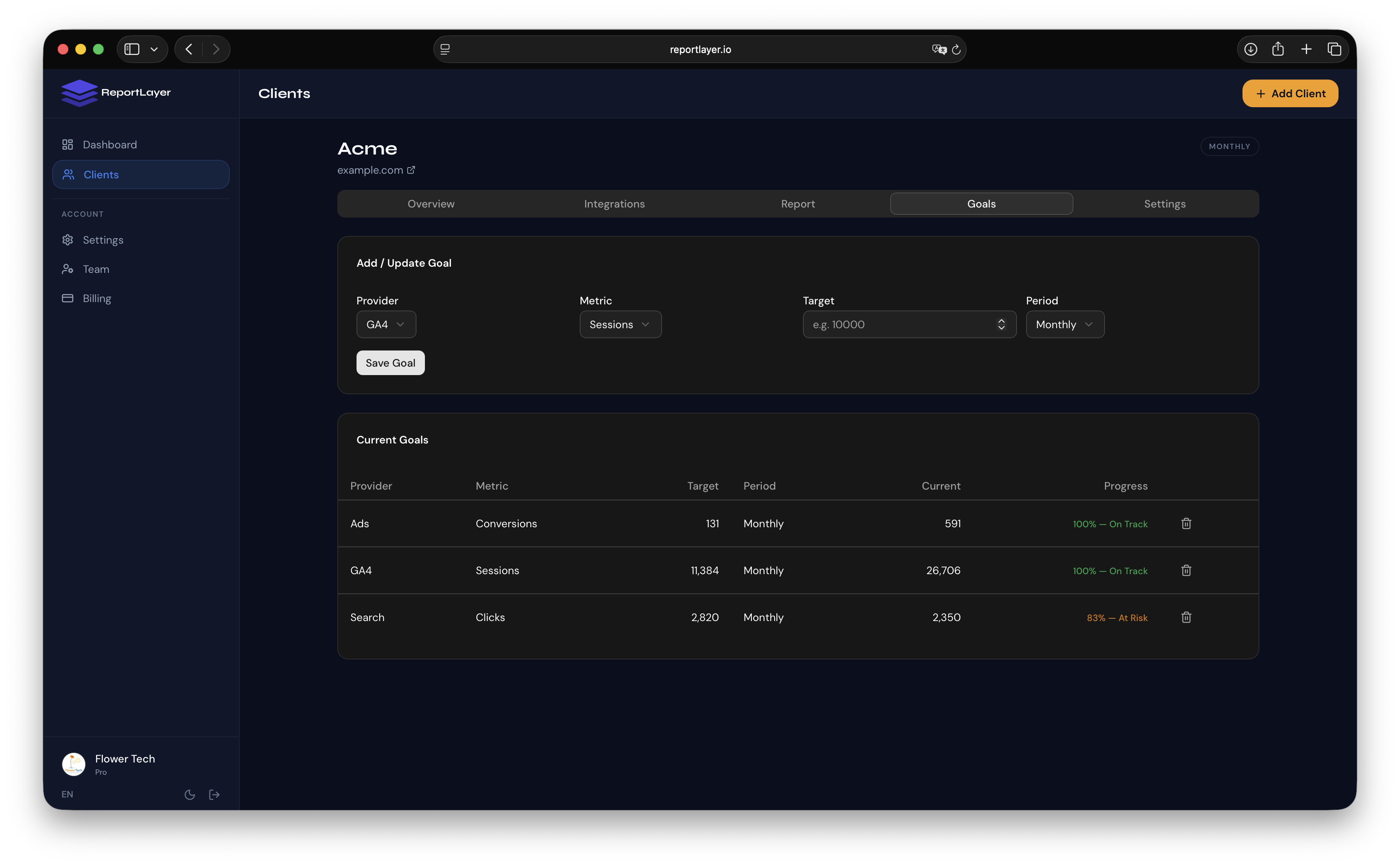
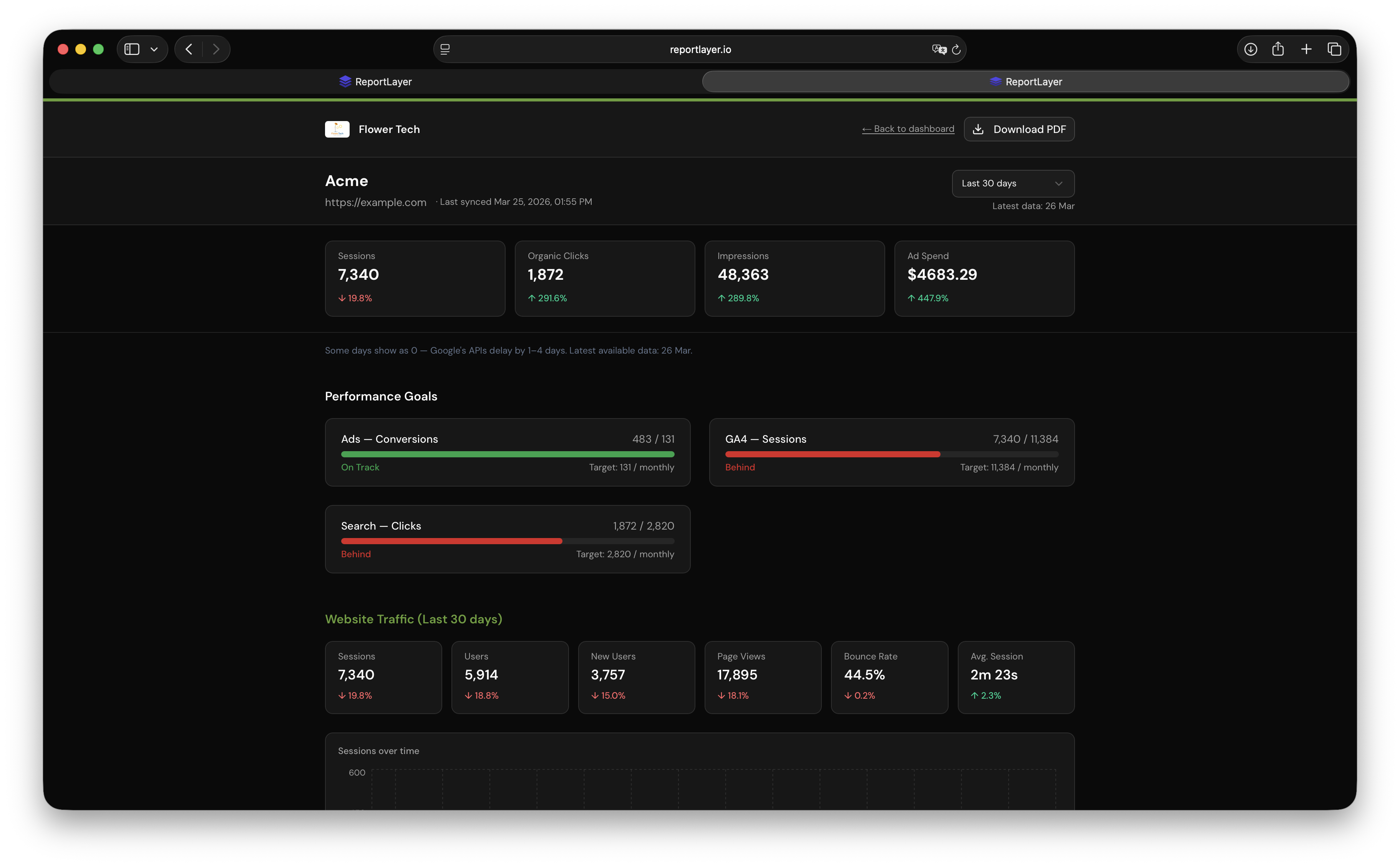
Then, inside each client's profile, configure their KPI goals: for example, “500+ sessions per month” for GA4, or “average position under 10” for Search Console. These appear on the report as progress bars with trend comparisons against the previous period. Clients immediately see whether they're on track, without you having to manually calculate or highlight anything.
Step 3: Configure the Delivery Schedule
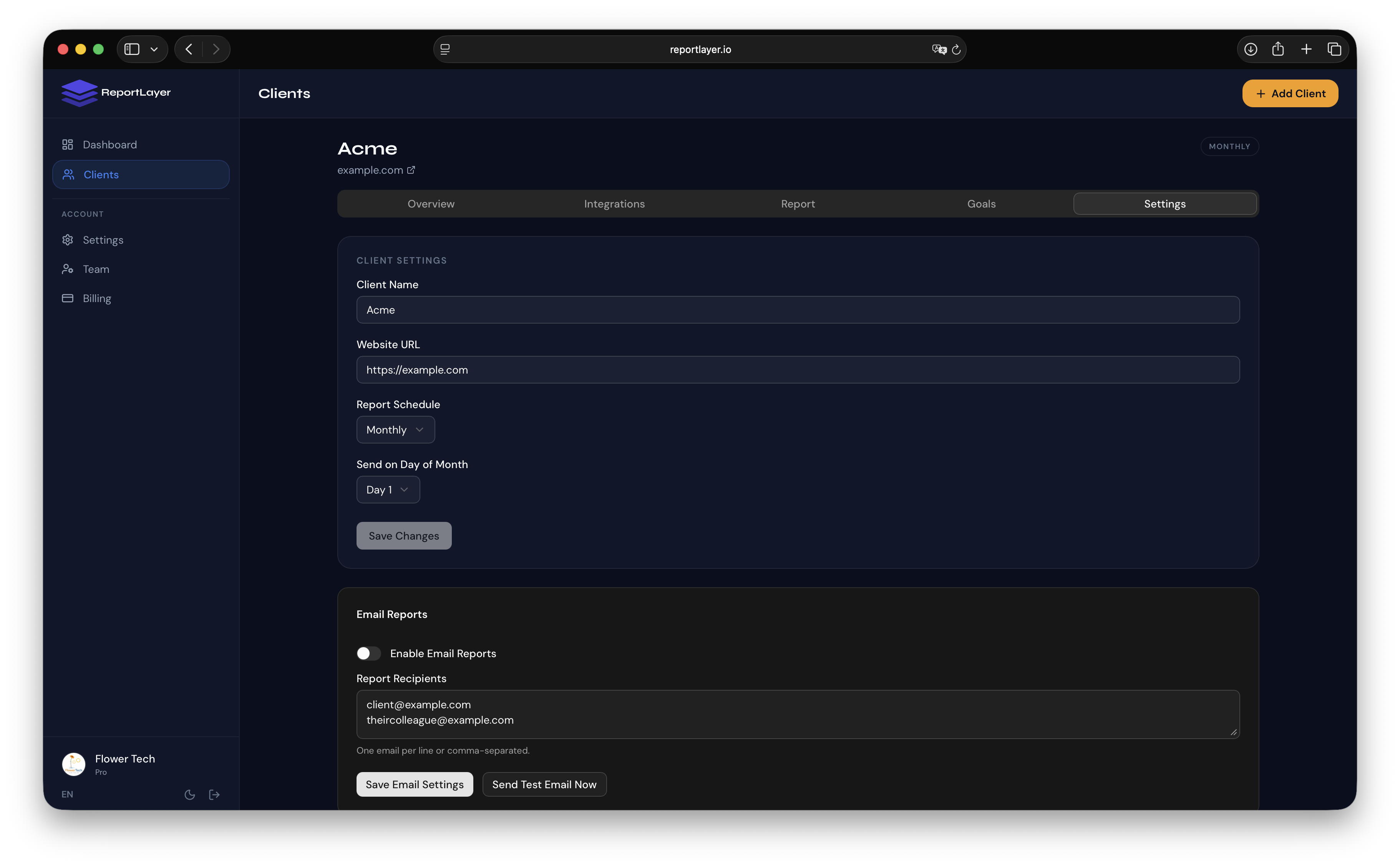
Inside the client's settings, find the Email Reports section. Toggle it on, then choose weekly or monthly delivery, pick the day, and enter client email addresses (comma-separated or one per line). Hit Save Email Settings. That's the entire setup.
If you want to confirm it's working, use the Send Test Email Now button to fire off an immediate test to those addresses.
Step 4: Share the Live Report Link
Every client automatically has a private shareable link — a permanent URL that always shows current data. No login required for the client to view it.
You can drop this link in a Slack message, pin it in your client portal, embed it in a monthly update email, or just send it directly. When they open it, they see a live dashboard with all their GA4, Search Console, and Ads data, updated within the last 24 hours. This link works as a backup too: even if a scheduled email ever gets missed, the client can always open their live report themselves.
Step 5: Let It Run
Once configured, the system takes over: data refreshes every 24 hours, scheduled emails go out on the day you set, and you only need to log in when a client has a specific question or wants a change.
Your Monday morning just freed up.
For a more detailed walkthrough of each step, including how to configure goals and delivery schedules, see how to set up automated weekly and monthly client reports.
What Gets Included in an Automated Report?
A well-configured automated report covers every channel your clients care about, without drowning them in noise.
- Traffic (Google Analytics 4): Sessions, users, new users, page views, bounce rate, average session duration, and a top-pages breakdown.
- Search Visibility (Google Search Console): Clicks, impressions, click-through rate, average position, top search queries, and top-performing pages. Period-over-period trend arrows show whether each metric is moving in the right direction.
- Paid Ads (Google Ads): Total spend, impressions, clicks, conversions, and average cost-per-click, with a daily breakdown across the reporting period.
- Goals & KPIs: Custom targets per client, displayed as progress bars with comparison to the previous matching period.
Everything your client needs to feel informed. Nothing they don't need to feel confused.
How Much Time Does This Actually Save?
Let's do the math honestly.
| Agency Size | Time per Report | Clients | Time per Week | Time per Year |
|---|---|---|---|---|
| Small | 30 min | 5 | 2.5 hours | 130 hours |
| Mid | 30 min | 10 | 5 hours | 260 hours |
| Large | 30 min | 25 | 12.5 hours | 650 hours |
“The best client report is the one you didn't have to build.”
Bonus: White-Label It Completely
One concern agencies often have with third-party reporting tools: clients see the vendor's branding and realize the agency isn't building these reports themselves.
On paid plans, the “Powered by ReportLayer” footer is removed entirely. Your clients see your logo, your accent color, and your agency name on every page. To the client, this is your reporting system — because functionally, it is. You configured it, you set the KPIs, you chose the delivery schedule. The infrastructure that powers it is invisible.
This matters for client retention. A branded, polished report that arrives automatically on the first of every month positions your agency as proactive, systematic, and professional. A manually-built PDF that shows up whenever you get around to it does the opposite. For a full guide to white-label setup, see white-label client reporting for agencies.
Frequently Asked Questions
Do my clients need to create an account to view their report?
No. Every client gets a private shareable link. They can open their live report in any browser, anytime, with no login or signup required.
Which platforms does automated reporting support?
Google Analytics 4, Google Search Console, and Google Ads. All three connect via OAuth — your client authorizes access once and that's it. No manual data exports at any point.
How often is the report data refreshed?
Once every 24 hours, automatically. No manual refresh required on your end.
Can I schedule reports differently per client?
Yes. Each client has their own delivery schedule, weekly or monthly, on the day of your choice. One client can get a weekly Monday report while another gets a monthly report on the first of the month.
Is there a free plan?
Yes. The free plan supports up to 3 clients with full GA4, Search Console, and Ads reporting, live shareable links, KPI goal tracking, and period comparisons. No credit card required. Scheduled email delivery and PDF export are available on paid plans starting at €29/month.
FREE GUIDE
5 Reporting Mistakes That Are Costing Your Agency Clients
The reporting errors that drive client churn, and how to fix them before your next monthly report.